Set Up the Outlook Integration
Connect your Microsoft account to MAIA and use emails and attachments from Outlook in chat.
Last updated 1 day ago
The Outlook integration lets you use emails as sources in chat. You choose which mailbox or folder MAIA should sync. After that, you can ask MAIA to summarize a long email thread, for example, or to pull the open items out of a project's messages.
Before you start
- Outlook is enabled for your workspace. An admin or the owner does this once under “Settings” > “Integrations” > “Outlook” with the “Enable Outlook for this workspace” button. Until then, the page says “Outlook is not enabled for this workspace yet.” Members without admin rights are asked to contact a workspace owner or admin instead.

You have a Microsoft account with access to the mailboxes you want to connect.
Everyone connects their own Microsoft account. Even if you've already connected it for SharePoint, you connect it again separately for Outlook.
Step 1: Connect your Microsoft account
Open “Settings” and select “Outlook” under “Integrations”.
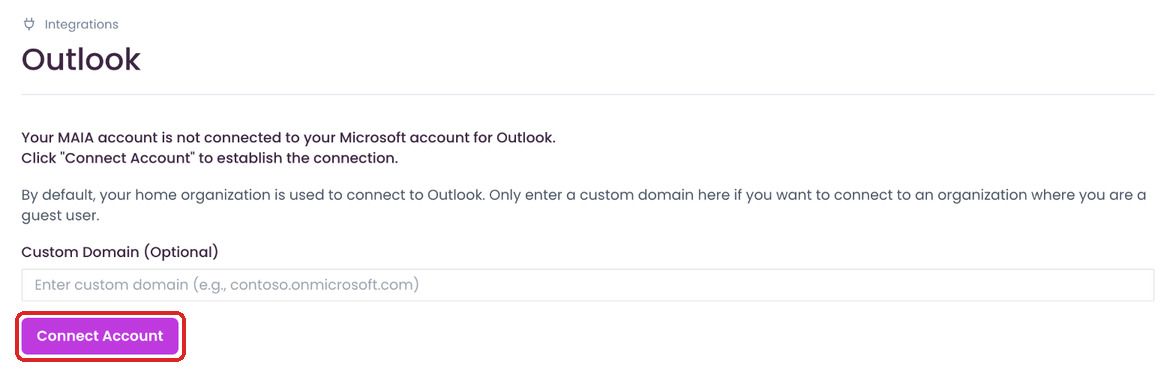
As long as no account is connected, you'll see the note “Your MAIA account is not connected to your Microsoft account for Outlook…”.
Optional: enter a domain in “Custom Domain (Optional)”. You only need this if the mailboxes belong to another Microsoft organization where you're a guest. If you leave it empty, MAIA connects your home organization. 4. Click “Connect Account” and sign in with your Microsoft account.
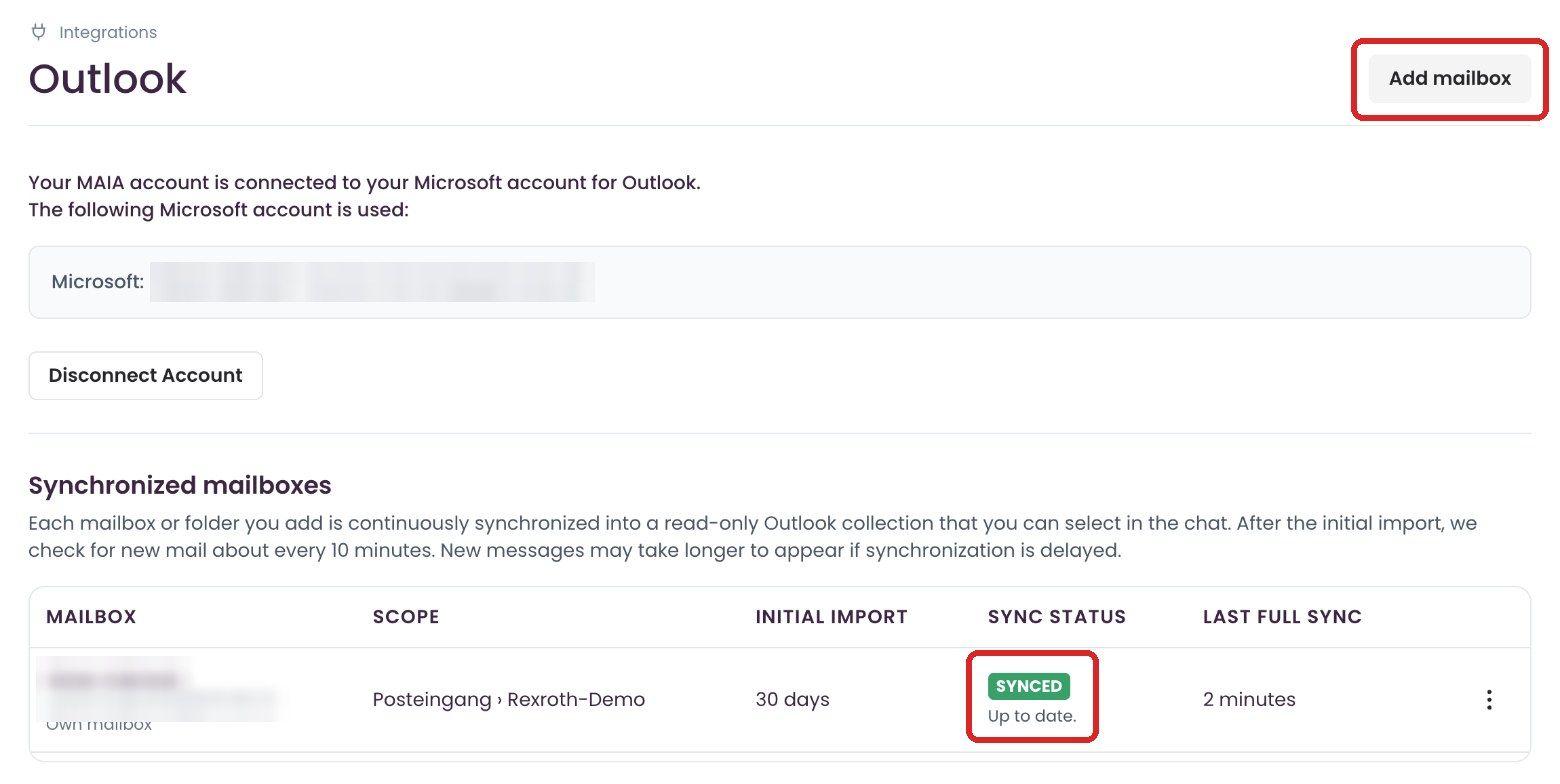
Afterwards the page says “Your MAIA account is connected to your Microsoft account for Outlook.” and shows the account in use.
Step 2: Add a mailbox or folder
- Click “Add mailbox” in the top right.
- In the dialog, choose where the emails come from:
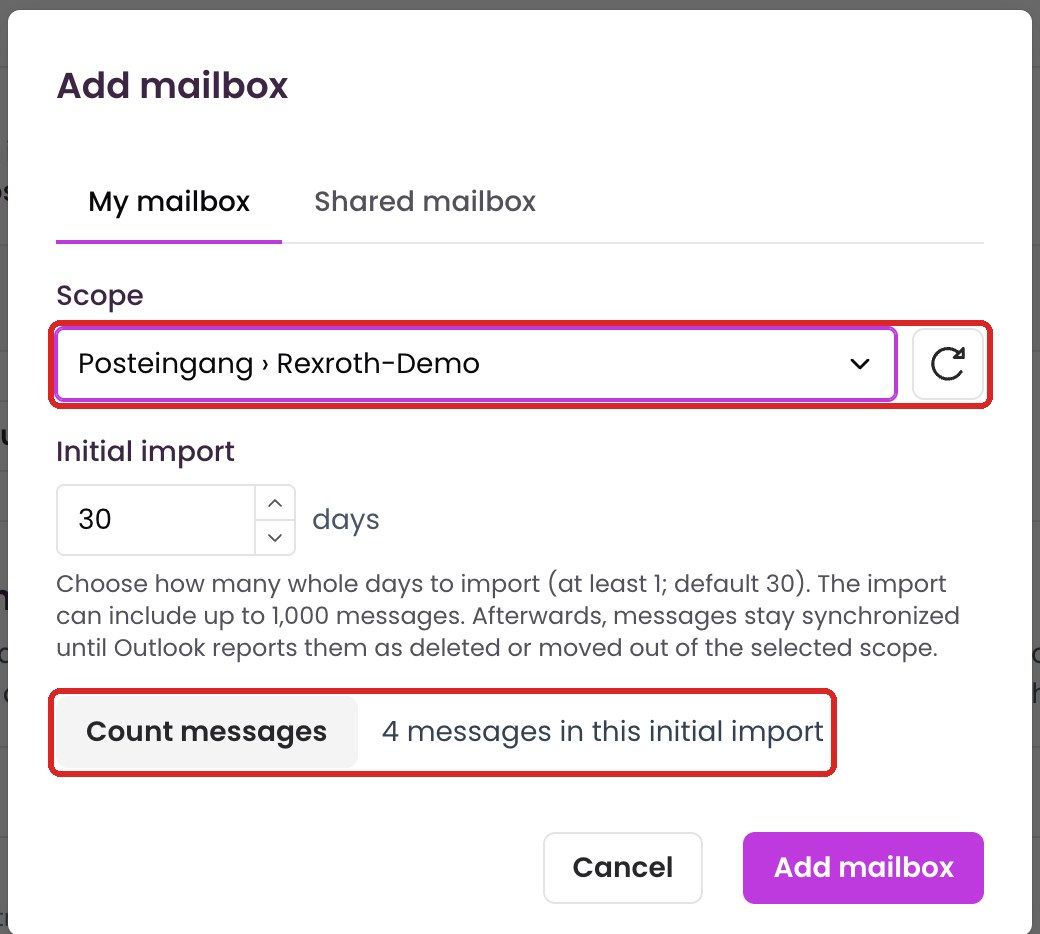
My mailbox: Under “Scope”, choose “Entire mailbox” or a single folder, for example “Inbox › Project”. The arrow button next to it reloads the folder list.
Shared mailbox: Switch to the “Shared mailbox” tab. Under “Email address of the shared mailbox”, enter the address, for example your support mailbox, and click “Load folders”. Only then does “Scope” appear. Choose “Entire mailbox” or a single folder, as for your own mailbox. Initial import and “Count messages” work the same way. When you add it, MAIA checks whether your Microsoft account can access the mailbox. In the list of synchronized mailboxes it then shows the note “Shared mailbox”.
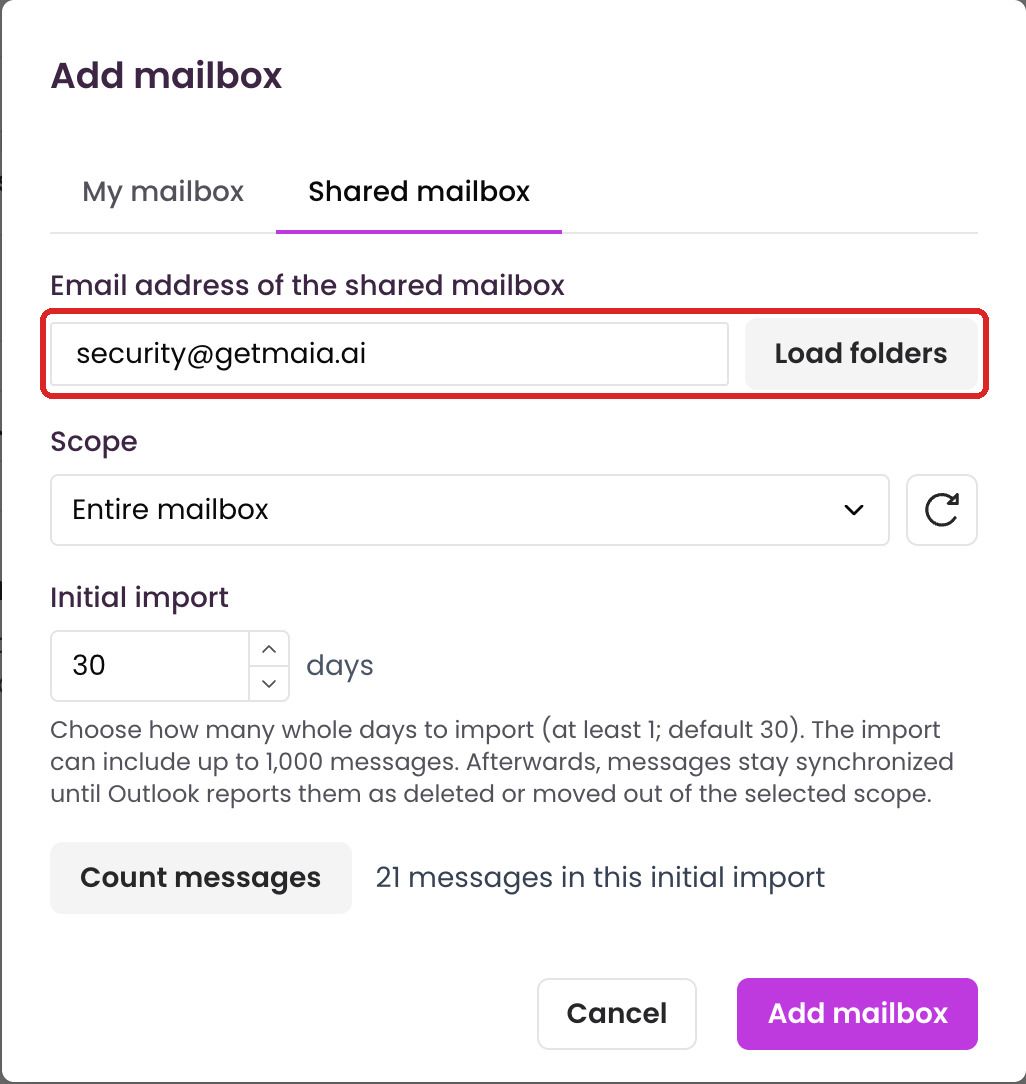
- Under “Initial import”, set how many days back MAIA should import emails. The default is 30 days, the minimum is 1 day. The initial import includes up to 1,000 messages.
- Optional: click “Count messages”. MAIA then shows how many messages the initial import includes, for example “4 messages in this initial import”.
- Click “Add mailbox”. MAIA confirms that the mailbox was added and that the initial import starts shortly.
To sync several folders, add each one separately.
Under “Synchronized mailboxes” you then see each mailbox you added, with its scope, initial import, sync status and last full sync. While the initial import runs, the status shows how many messages have been processed. Once it's done, the status shows “Synced” and “Up to date.”
Step 3: Use emails in chat
- Open a chat and click “Select Files”.
- Under “Integrations” on the left, select “Outlook”. Each synchronized mailbox or folder appears there as its own collection.
- Open the collection, check the emails MAIA should use, and click “Select”. You can also check the whole collection.
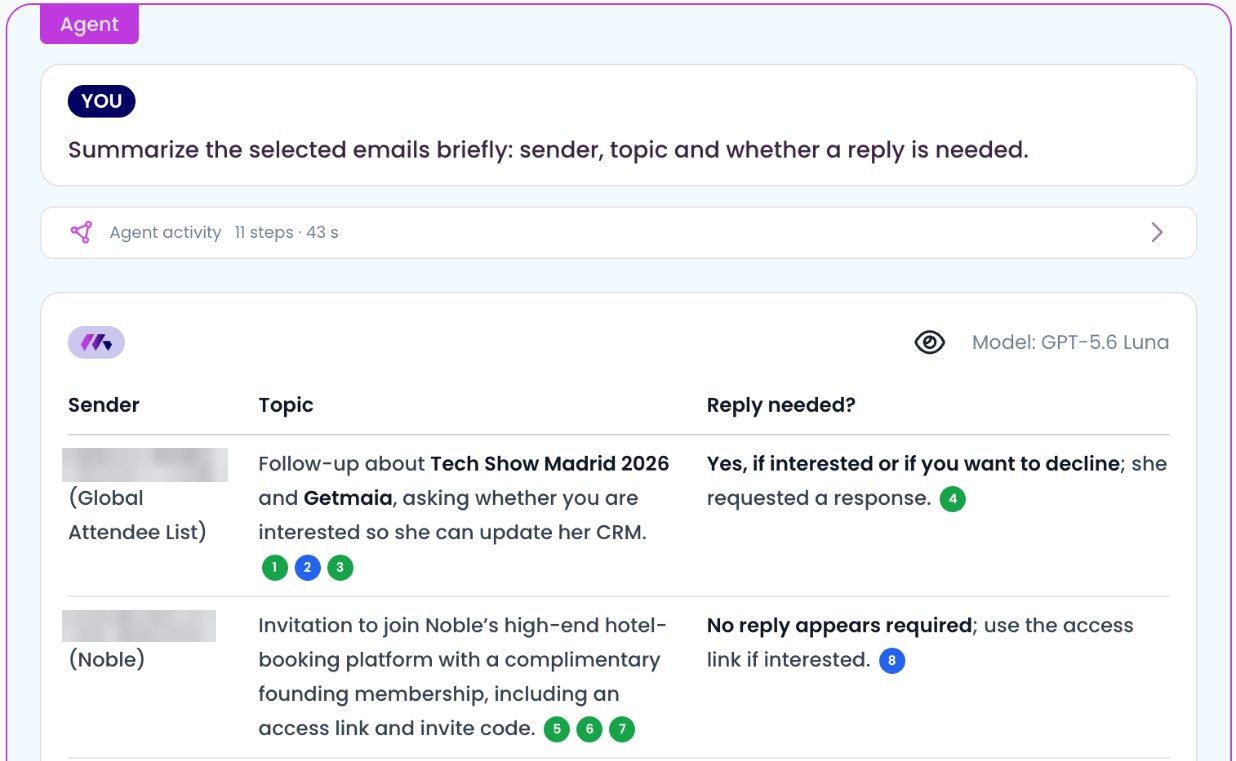
- Ask your question as usual, for example: “Summarize the selected emails briefly: sender, topic and whether a reply is needed.”
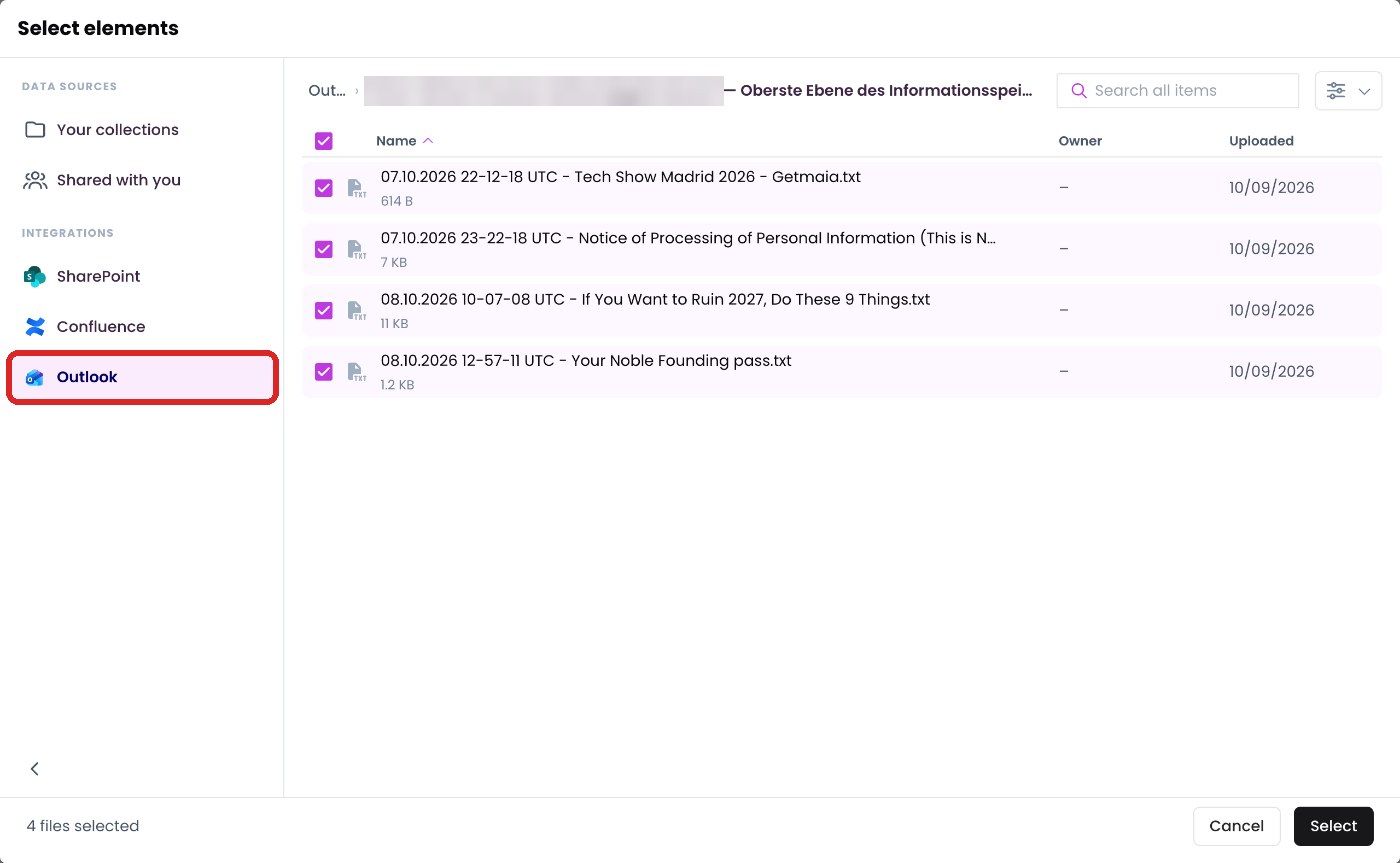
Each email is a text file in the collection. The file name starts with the date and time (UTC), followed by the subject, for example “08.10.2026 12-57-11 UTC - Lock gate quote.txt”.
Good to know
- Initial import: MAIA only imports emails from the chosen period, up to 1,000 messages. MAIA can't find older emails, even if they're still in Outlook.
- Updates: After the initial import, MAIA checks for new emails about every 10 minutes. If synchronization is delayed, it can take longer for them to appear. An email stays synchronized until it's deleted in Outlook or moved out of the selected scope.
- Read-only: You can't edit the Outlook collections in MAIA.
- Attachments: MAIA also syncs attachments in file formats it supports.
Stop syncing
- Open “Settings” > “Integrations” > “Outlook”.
- In the mailbox's row, click “⋮” and choose “Stop”.
- Confirm with “Stop synchronization”. Syncing stops right away. The collection with the emails is kept for 30 more days. If you add the same mailbox or folder again during that time, MAIA restores it. After that, MAIA deletes the synchronized data.
Who can see imported emails?
Only the person who imported the emails can see them. Workspace owners and admins can't access them either. You also can't share Outlook collections with others.
FAQ
I can't find an email. Check that it's within the selected scope and not older than the initial import period. The initial import also includes no more than 1,000 messages. New emails only appear after the next check, so after about 10 minutes.
“Load folders” doesn't find the shared mailbox. You need access to the shared mailbox in Outlook yourself. MAIA only shows mailboxes your connected Microsoft account is allowed to access.
How do I disconnect? Under “Settings” > “Integrations” > “Outlook”, click “Disconnect Account”. While your account is disconnected, MAIA doesn't sync your mailboxes. Your synchronized emails and mailbox settings are kept. When you connect your account again, syncing continues. To remove the emails from MAIA, stop syncing the mailboxes first. If you have questions, contact us at support@getmaia.ai.
Was this helpful?
Still need help? Share an idea