2. Upload and Share documents
Last updated Over 1 year ago
2.1 Creating a file collection
Navigate to Data Manager:

Click on ‘+ New file collection’ or ‘+ Add file collection’
Select a suitable name for the new collection:

(If you are the admin or owner of the workspace, you can also share the new file collection with the entire workspace. To do this, please select ‘Share with the entire workspace’.)
Click on ‘Confirm’
The collection has now been created and can be filled with files.

Depending on whether the file collection has been shared with the entire workspace or not, it will appear in one of the following three main categories on the left-hand side of the side bar: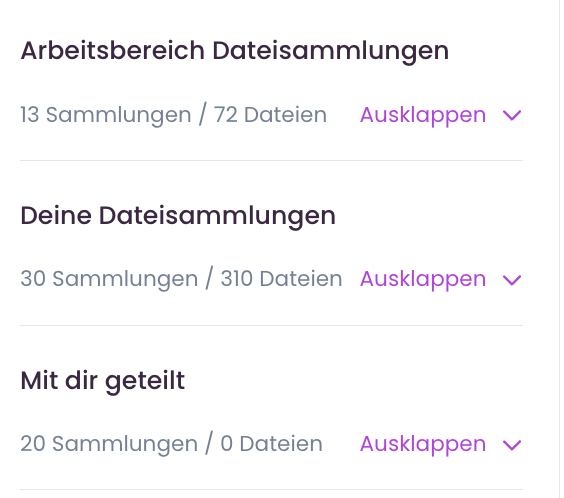
‘Shared with you’: This is where files that have been shared privately with you bilaterally via the ‘Share’ button end up.
2.2 Upload files
Select the desired file collection.
Click on ‘Upload file’

Either drag & drop the desired files into the upload field or select them manually by clicking on ‘Select’.
MAIA supports .pdf, .docx, .txt & .pptx. Subfolder structures are also recognised and supported by MAIA. CSVs can also be activated on request.

The files are now analysed by MAIA. As soon as their status is set to ‘Ready’, the uploaded files are ready to be analysed.

In this example, delivery notes have been uploaded. It is possible to upload all documents in the following formats: .pdf, .docx, .txt & .pptx.You can now switch to the chat and work with the documents.