Web search
How MAIA adds current information from the web to your internal knowledge, how you control web search and how your data is protected.
Last updated 1 day ago
With web search, MAIA adds current information from the internet to what she knows from your documents. MAIA notices when external knowledge is missing for your request, searches for it and lists the web sources she used. This works with and without selected documents.
Requirements
- Web search has to be enabled for your workspace. New workspaces have it on by default.
- If you don't see the “Web Search” toggle, contact your workspace admin or support@getmaia.ai.
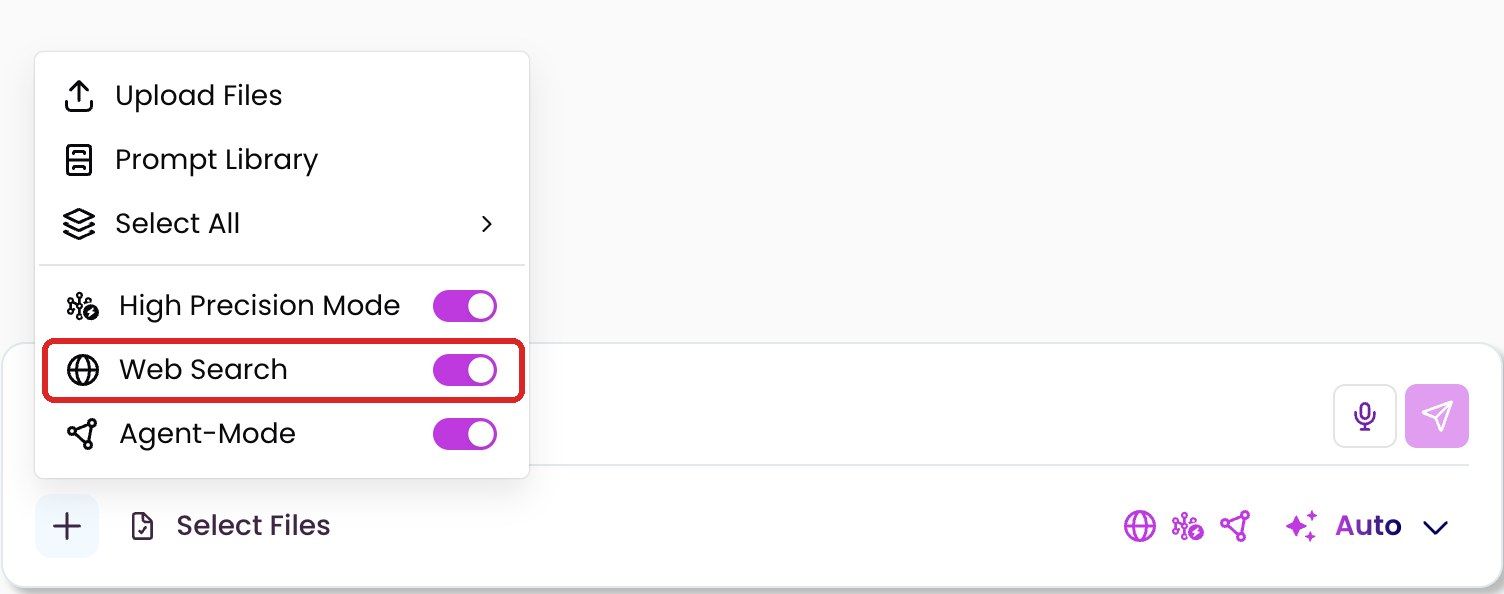
Turn web search on or off
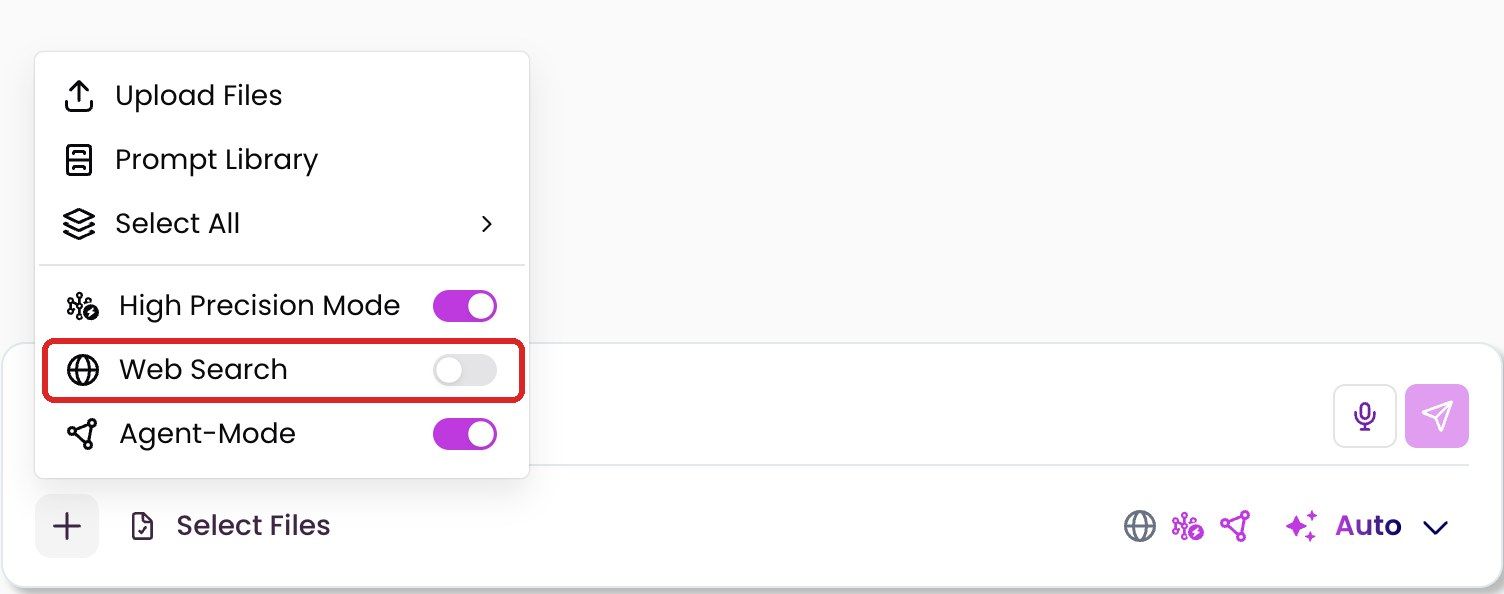
Click “+” below the chat input.
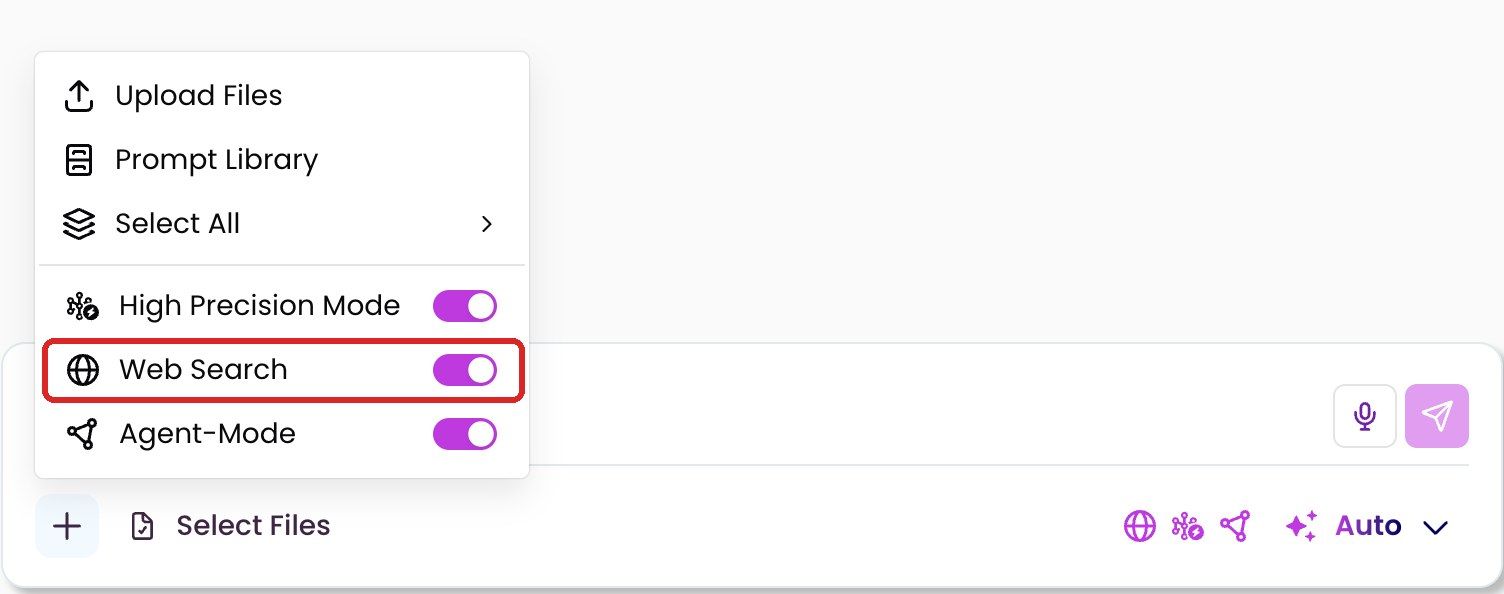
Switch “Web Search” on or off.
Type your request and send it.
The setting applies to your next requests. It is saved, also for new chats, until you change it yourself. Web search is on by default.
When each setting makes sense:
- Web search on: market research, competitors, standards and news, preparing for a customer meeting.
- Web search off: questions that only concern your internal documents, such as a project overview. The answer often comes faster.
When MAIA searches the web
With web search on, MAIA decides for each request whether to search the web. She does this mainly when your documents don't fully answer a question or when you ask for current information. You can also ask MAIA directly, for example: “Search the web for recent news about company XY.”
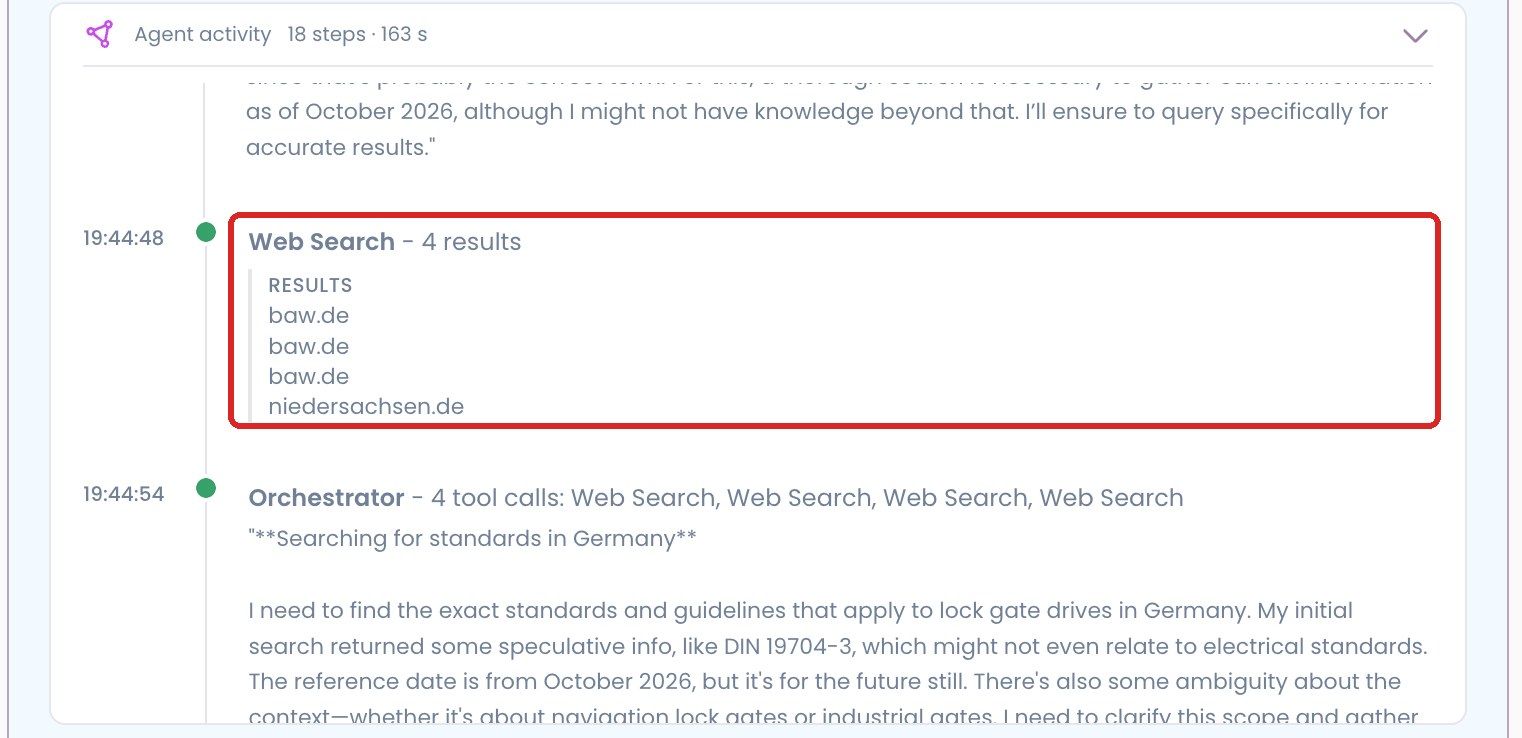
If web search is off and you still ask MAIA to search the web, she tells you that web search is switched off.
Sources
MAIA lists the web pages she used for the answer as sources. This shows you which information comes from your documents and which comes from the web.
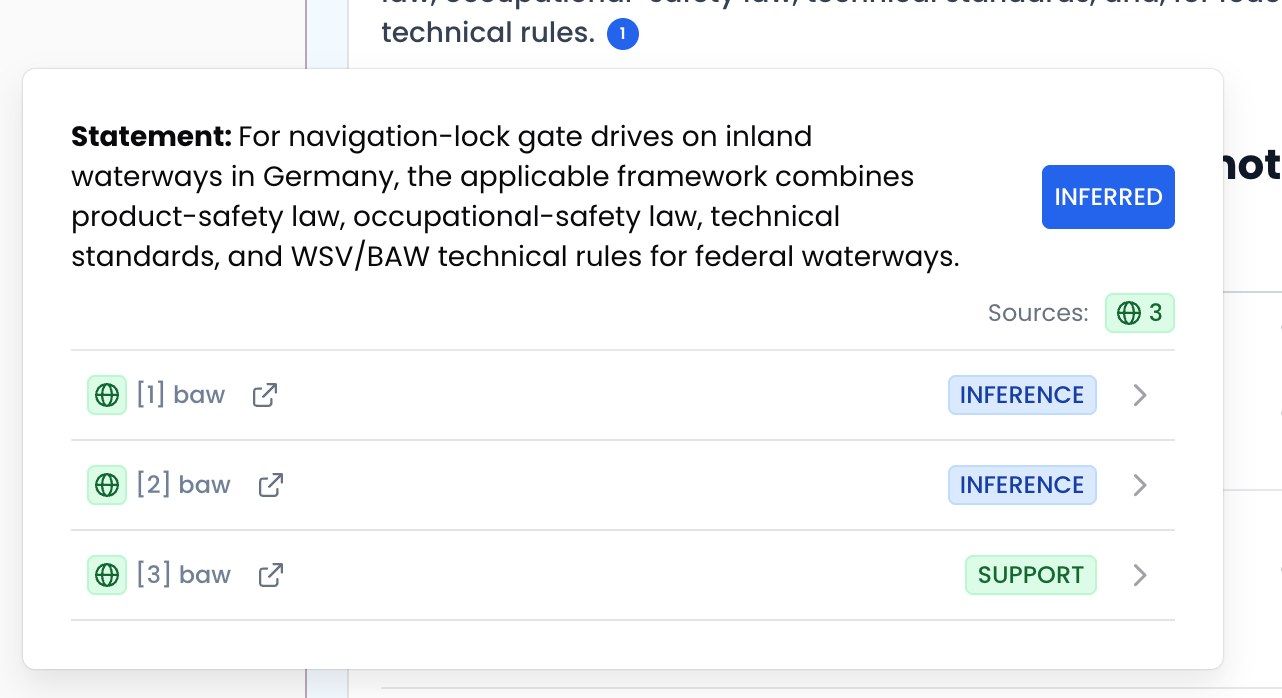
Numbered circles follow the statements in the answer. Click a number to open a window with the statement and its sources. Web sources have a globe icon and the short name of the website, for example “[1] ihk”. The arrow icon next to it opens the web page.
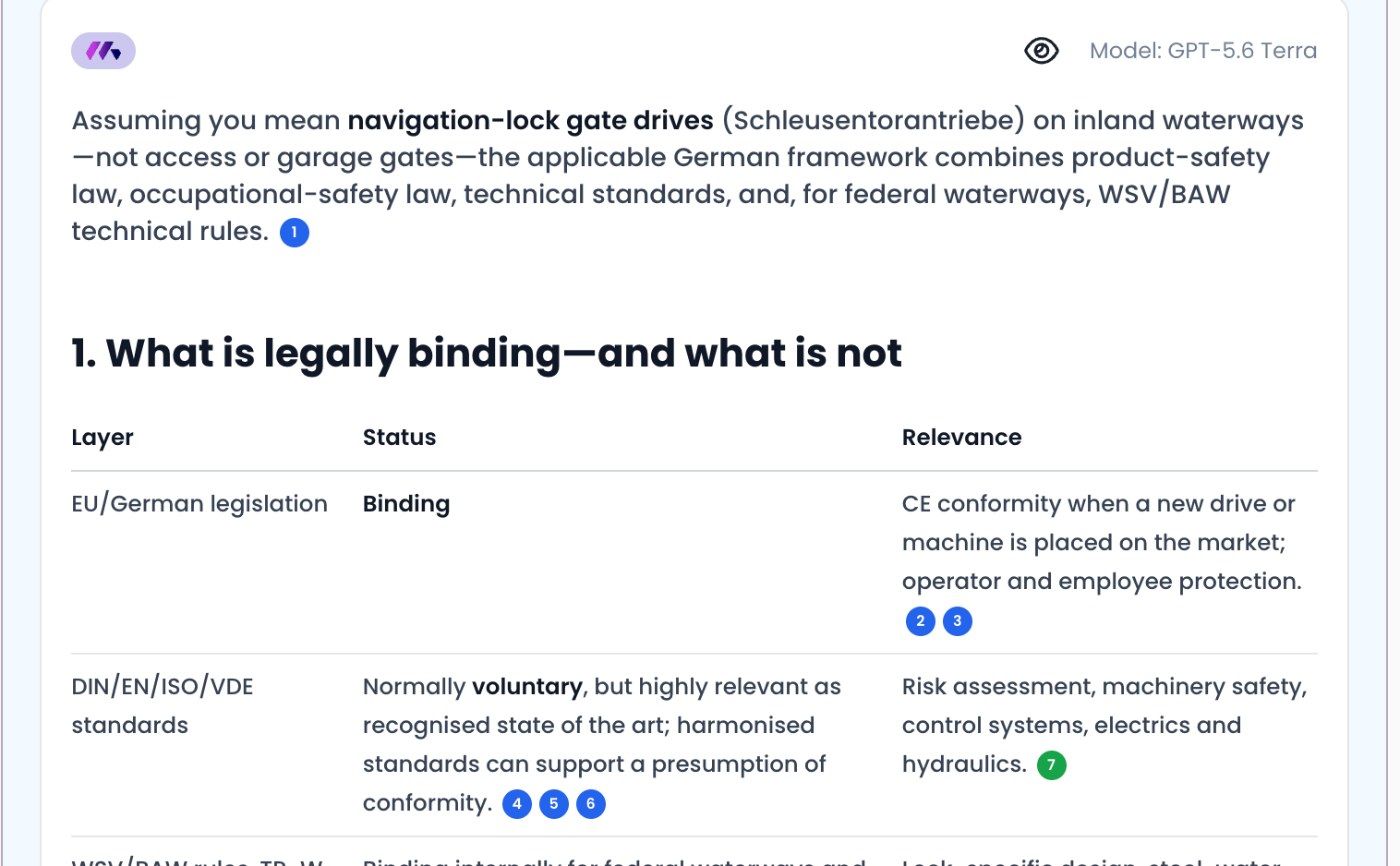
With High Precision Mode, MAIA also checks her statements against the sources she found, including the web results. The color of the number then shows the result: green for “Verified”, blue for “Inferred”, black for “Unclassified”. In the window, each source is marked as either directly backing the statement (“Support”) or as the basis MAIA draws a conclusion from (“Inference”).
Data protection
- Search without data retention: MAIA searches through Google Enterprise Web Grounding. The provider neither stores nor logs your search queries or their content (zero data retention).
- No company data in searches: MAIA is set up not to put personal data or internal company information from your documents or your chat into search queries.
- Full control: If you want to be completely sure for a request, switch web search off for it.
Limits
- MAIA searches the web specifically for your request. She doesn't import entire websites or keep them up to date on a schedule.
- MAIA can't open pages behind a login, such as a customer portal.
- Web content can be outdated or wrong. Check important details in the linked source.
If you want to use certain websites in MAIA permanently, let your contact person know or write to support@getmaia.ai.
FAQ
Does MAIA also search the web when I've selected documents? Yes, if web search is on. MAIA then adds to the information from your documents and marks the web sources.
How do I get an answer from my documents only? Switch web search off in the “+” menu and select the documents MAIA should use.
For the other toggles in the “+” menu, see Agent Mode.
Was this helpful?
Still need help? Share an idea