4. Share your knowledge with your team (Insight Hub)
Last updated 1 day ago
MAIA learns so-called "insights" about your company, your products, your processes, your niche, and more.
Why?
Quite simply: So that undocumented knowledge becomes visible, implicit know-how becomes accessible, and knowledge can be sustainably shared within your team. This allows you to build on existing experience without having to ask someone directly every time — and makes valuable knowledge usable for your team.
And as a side benefit, you don’t have to keep repeating yourself (“Hi, I work at X and do Y; please help me with task Z” → “Hi, let’s go through Z again”) — MAIA can support you with full context and just as competently as your most knowledgeable colleague.
1. Have a chat with MAIA
Any regular chat that involves at least one document is in principle basis for insight extraction. So to "start the extraction" you don't have to do anything! Just use MAIA as always.
2. Review your generated insights
MAIA will review chats, run them through 4 levels of security, personal data, and more filters to find only the true nuggets that will be really useful to other people and keep all personal things safe.
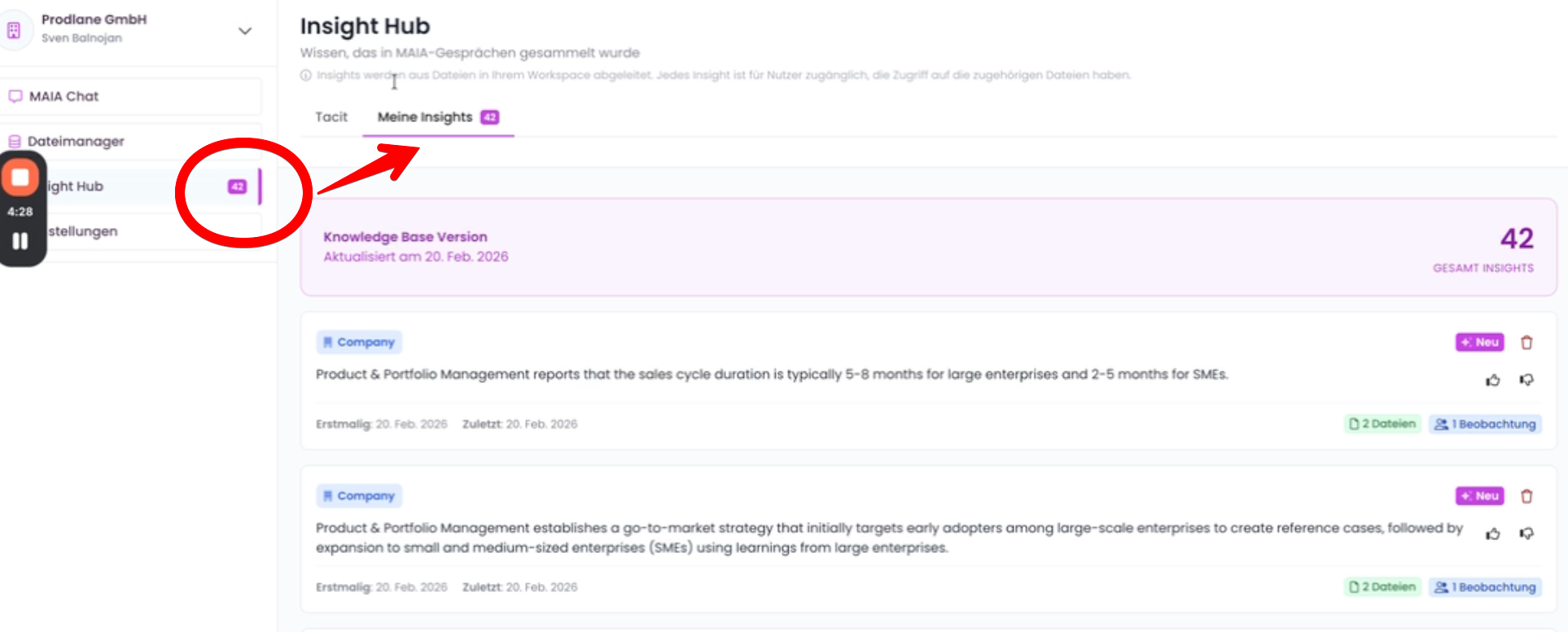
Click "Insight Hub" on the left.
Under "Tacit" you see all insights in the workspace that you have access to. They are sorted into categories such as "Company", "Process", "Product", "Project", "Industry", "Niche" and "Competitive". The total number of insights is shown at the top.
Under "My Insights" you see the insights your own chats contributed to. New insights appear there with a delay.
Each insight shows when it was first and last seen ("First seen", "Last seen"), how many files it comes from and how often it was observed ("observations").
Under "My Insights" you can rate and delete each insight. "Tacit" doesn't have these buttons.
- Rate: Thumbs up marks an insight as helpful, thumbs down as not helpful. Click again to remove your rating. If everyone who contributed to an insight marks it as not helpful, it no longer appears under "Tacit".
- Delete: The trash icon removes an insight from your list. MAIA asks you to confirm first. If nobody else contributed to the insight, it's deleted entirely.
- New insights: New insights are labeled "New". The number next to "Insight Hub" in the sidebar shows how many new insights have been added since you last opened "My Insights". It disappears once you open "My Insights".
3. Test the Insights inside a MAIA Chat
MAIA will always go and check through the insights, no matter what kind of Chat you open up. She will filter for relevant ones and only consider them if she thinks they add to the answer.
The “+” menu below the input box has an “Insight Hub” switch for this. When it's on, hovering over the lightbulb icon below the input box shows “Insight Hub is enabled”. If you turn it off, MAIA doesn't use insights for your requests and doesn't save new insights directly from the chat. Answers are often faster as a result. The setting stays in place for new chats until you change it. If a chat shouldn't feed into insights at all, use incognito mode (see section 5). But you can always see how MAIA uses the insights by asking directly for them or asking a question involving them.
3.1 Ask a question likely involving an insight
Try this out, if you have an insight like this one*: "Product & Portfolio Management reports that the sales cycle duration is typically 5-8 months for large enterprises and 2-5 months for SMEs*." Go and ask MAIA, "Hey, I have an SME and want to sell MAIA to it. What do you think the timeline is here?"
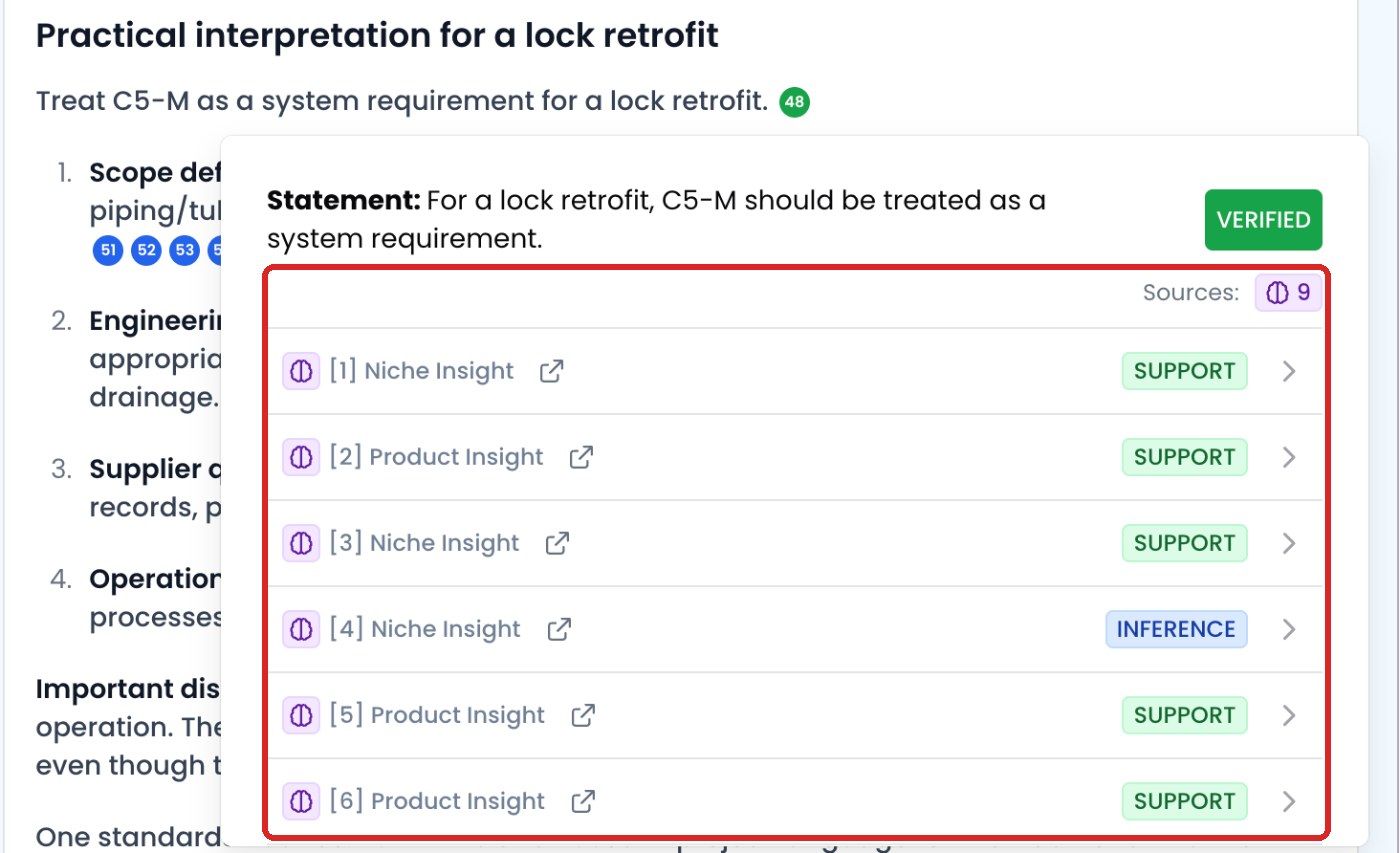
The answer contains numbered references. Click one to see the sources of a statement. If it comes from insights, the sources show for example "Project Insight" or "Product Insight" with their own icon:
3.2 Ask for an overview of your insights
You can also ask MAIA things like
"Hey MAIA, tell me about all the insights you have collected for our company."
"Hey MAIA, tell me the top 3 observed insights"
4. Share insights by sharing the associated files
We implement a strict "need to know" data policy, so we only show other team members insights when they fulfill the strictest permissions associated with one.
For instance, if you chat with document 1 in a long chat, and then with document 2 inside the same chat, all insights generated will be only visible to team members with access to BOTH documents.
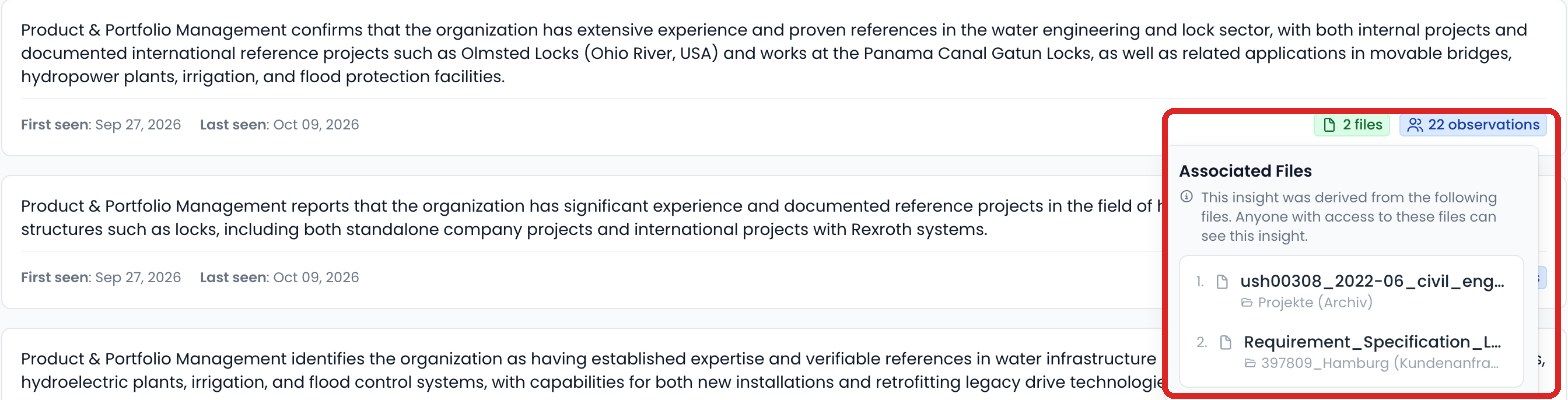
In the Insight Hub you can see which files people need access to in order to see an insight:
Click "Insight Hub" on the left.
On an insight, click the green chip at the bottom right, for example "2 files". The "Associated Files" window lists the files the insight was derived from. Anyone with access to these files can see it.
5. Go into Incognito mode for conversations that shouldn't be shared with teammates
In rare cases, you may want to turn off Insight generation and not let other team members (or yourself in the next chat) benefit from the knowledge inside of a chat. In that case, simply turn on incognito mode!
Open a new chat.
Click the hat icon at the top right ("Enable incognito mode"). MAIA then shows the note "This is an incognito chat. Your messages won't be used to generate Insight Hub knowledge." A pink frame labelled "Incognito mode – Insights generation off" appears around the input box. You can only change this before you send your first message.
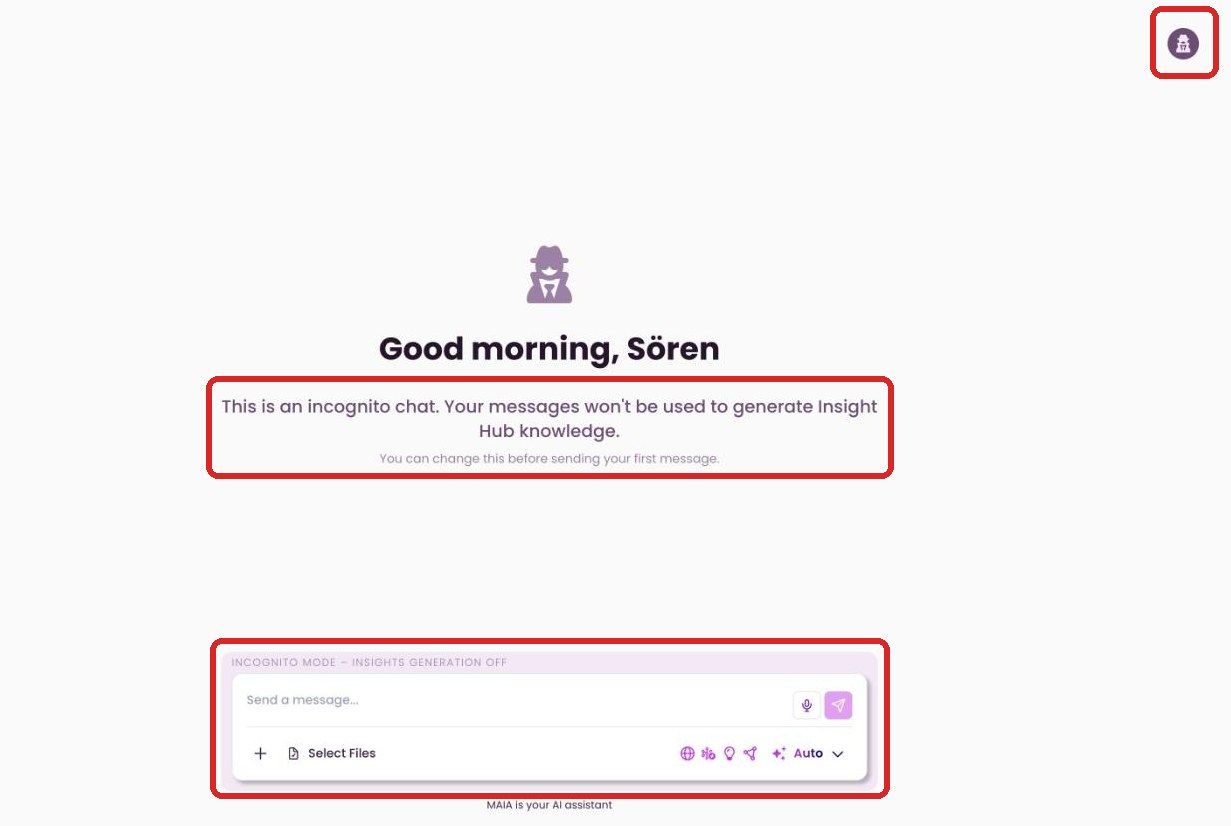
Note: You'll notice the little icon next to all chats that were conducted in incognito mode.
Was this helpful?
Still need help? Share an idea