Space not found?
If your space cannot be connected, it's probably because the MAIA for Confluence app lacks the necessary permissions. Here's a detailed guide on how to set the permissions.
Last updated Over 1 year ago
Of course! Here's the English version with formatting preserved:
How to Fix Missing Space Access for MAIA for Confluence
Note: Changes may take up to one day to become visible in MAIA.
Prerequisites
Both steps must be completed successfully before continuing:
Confluence Setup Part 1: Installing MAIA for Confluence Atlassian Connect App : Install the MAIA for Confluence Atlassian Connect App
Confluence Setup Part 2: Connect Your MAIA Account with Atlassian Connect your MAIA account with Atlassian
To allow MAIA for Confluence to sync your private Confluence spaces — or if a space is not visible despite having access — you must explicitly grant the app user access to the space. This can be done individually or via a user group.
Follow these steps:
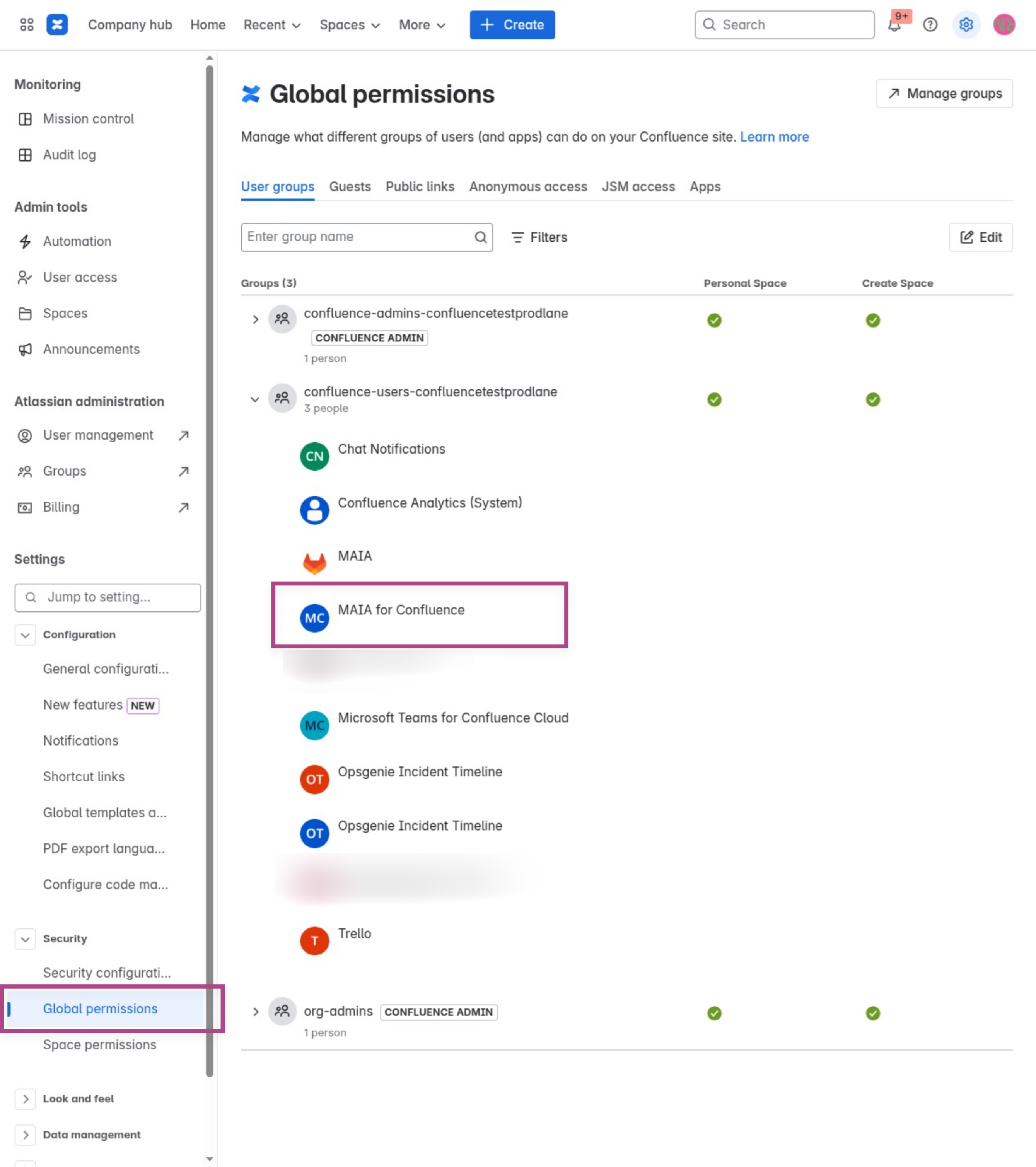
Step 1: Navigate to Global Permissions
Go to Settings → Global permissions and confirm that MAIA for Confluence is listed.
Step 2: Access Space Permissions
Under Settings, select Space permissions.
Find the private space and click Manage access.

Step 3: Add the MAIA User to the Space
Go to Space settings → Space access.
Use the search field to find “MAIA for Confluence” and add the user.

Step 4: Set Appropriate Permissions
Check the required permissions (e.g., View) for the MAIA for Confluence user and click Save.

Your private space is now accessible to MAIA for Confluence and ready for synchronization or visibility in the app.
Don’t worry – the space is still only visible to authorized users.