MAIA Glossar
Last updated Over 1 year ago
Further resources: A short demo video can be found in the release announcement.
1. Why and when to use it?
‘If MAIA misunderstands you, then the glossary might be your solution!’
The glossary function was developed specifically for companies working in highly specialised industries where standard models such as ChatGPT often reach their limits because they simply don't know certain words and concepts. It solves three main challenges:
Company-specific terminology: by uploading the glossary, MAIA understands terms that are unique to your company or industry (e.g. auger = common term for Company X's welding machine).
Industry-specific terms and abbreviations: MAIA interprets technical terms and acronyms correctly (e.g. MAIA = Mittelstands AI-Assistent).
Specialised translations: Similar to DeepL glossaries, MAIA enables the standardised translation of specific terms in an industry-specific manner.
2. Steps for use
Step 1: Upload glossary (admin task)
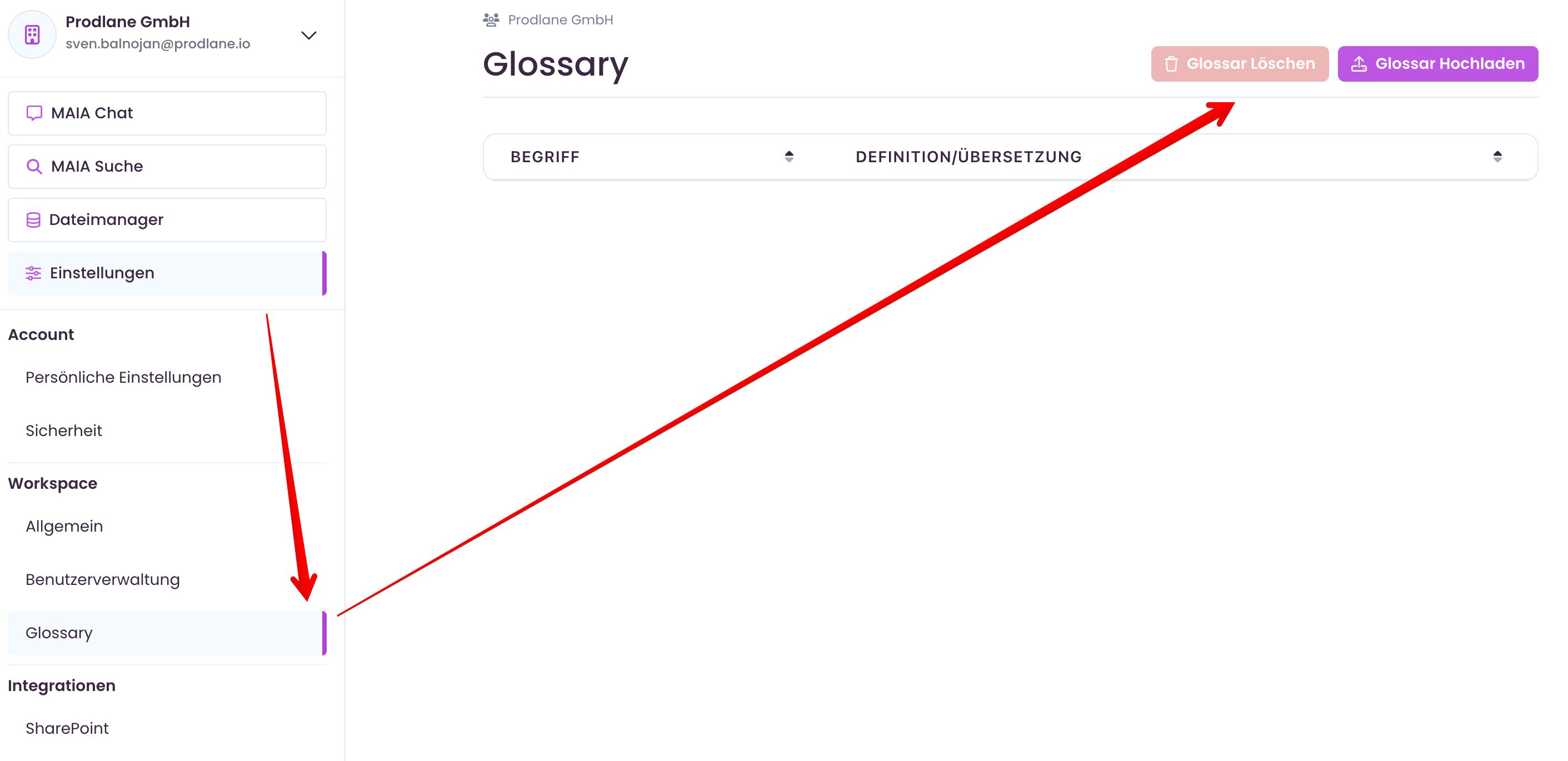
Only workspace admins can manage glossaries.
The glossary is valid for the entire workspace (not just for one user).
Under Settings > Workspace > Glossary, the admin can:
upload a glossary
delete a glossary
view the terms
Admins can upload glossaries in PDF, CSV or TXT format. The content is parsed by an AI model (LLM), which means that the exact format is less important. A simple structure like this is ideal:
Term: Definition
Abbreviation: Meaning
Step 2: Automatic integration for all users
Once uploaded, the glossary is automatically integrated into all user enquiries.
Example: An enquiry such as ‘I would like a competition analysis. Compare our main products with the auger’ returns a correct answer, with the understanding that “auger” is a welding machine from a competitor company.
Step 3: Interactive use
All users within a workspace can work directly with the glossary:
Retrieve definitions:Ask, ‘What does the glossary say about X?’ or ‘Give me the definition of Y.’
View glossary: View the glossary entries via the corresponding functions.
3. Technical details and functions
One-to-one relationship: The glossary works with clear assignments (e.g. term = definition or abbreviation = meaning).
Parsing: The uploaded glossaries are processed by an LLM. Minor formatting problems are corrected automatically.
File formats: PDF, CSV or TXT are supported.
4. FAQ
Why only 100 entries?
A glossary is always included by MAIA in the answer, no matter what the question is, workspace-wide. A glossary is therefore a major intervention in how your specific MAIA works.
That's why the entries are limited to 100, because otherwise MAIA is so busy looking at 1,000+ terms for every single question that it forgets the actual question altogether.
As a large company, do I have to upload a glossary?
No. A glossary is really meant for specific terms that you have already noticed or know directly that they are special. Your products and your product portfolio, for example, are usually already included in the basic GPT glossary through Wikipedia entries and websites.
How do I upload a glossary?
Admins can click on ‘Upload glossary’ in the settings under Glossary and select a file (PDF, CSV, TXT).
Why does the glossary upload not always work?
The glossary is automatically recognised with the help of an LLM. This means that most common ways of writing a glossary can be parsed. However, even a supposedly clear glossary may not be recognised in rare cases. If you have any questions, please contact info@prodlane.io.
A new upload can help in these cases. If the glossary is repeatedly not recognised, we recommend splitting the glossary and testing the individual parts.
Why does the ‘Show glossary’ link always appear in the chat?
The glossary is included in every chat history. Accordingly, it functions similarly to another source. Therefore, the link to the glossary appears in most chat histories (this functionality will be refined in a future iteration).
‘Message violates content guidelines’
The glossary is included in every chat message. In rare cases, this can lead to most chats being blocked by the error ‘Message violates content guidelines’.
This is the case if abbreviations or similar terms are unknowingly included in the glossary. terms are included in the glossary, which are caught by an automatic filter of the AI. In this case, we recommend switching off the glossary and testing directly in pieces through the chat (C&P in the chat).