SharePoint Connection Guide
Last updated About 1 year ago
This guide provides step-by-step instructions for integrating SharePoint with MAIA to enable seamless access to your organization’s SharePoint files within the MAIA application. Following these steps will allow authorized users to connect specific SharePoint sites and access them in the MAIA Chat to ask questions answered enriched with your SharePoint knowledge base. The setup requires admin privileges in both MAIA and Microsoft Azure for granting the necessary permissions.
MAIA and SharePoint Integration Guide
This guide explains how to integrate SharePoint with your MAIA workspace. It is intended for external customers.
Prerequisites
Admin / Owner access to your MAIA workspace
A Microsoft account with appropriate SharePoint permissions
Each workspace user must individually connect their Microsoft account
Key Concepts
Tenant Restriction: Each MAIA workspace can only connect to one Microsoft tenant. The first connected Microsoft account determines the tenant.
Access Limitation: Users only see SharePoint files that their connected Microsoft account has access to.
Sync Methods: Two sync modes are available — User-Based Sync and App-Based Sync.
Step 1: Connect Your Microsoft Account

Navigate to
Settings → Integrations → SharePoint(OPTIONAL) Enter a custom domain to connect to.
In Microsoft, you can be a guest in another tenant/organization. By default, your home organization will be connected. If you don’t see the correct sites to connect to, it may be because they belong to another organization where you are a guest.
Click Connect Account
Authenticate using your Microsoft credentials
This connects your Microsoft account and defines the tenant for your MAIA workspace.
Step 2: Choose Sync Method
Option A: User-Based Sync


Select a Sync User from the dropdown
Click Set Sync User
Confirm the change in the confirmation popup
Important:
Only files visible to the Sync User can be synced.
Other users cannot access files that the Sync User cannot access.
Microsoft applies rate limits for individual users, which may slow sync.
Option B: App-Based Sync (Recommended)

In the Sync with App section, click Connect
Follow the prompt to authorize MAIA as an enterprise application in your Microsoft tenant. In case of uncertainties, follow this Guide.
Advantages:
Significantly higher Microsoft API rate limits
No need for periodic reauthentication of the Sync User
Ideal for large SharePoint instances or workspaces with many users
Step 3: Connect SharePoint Sites
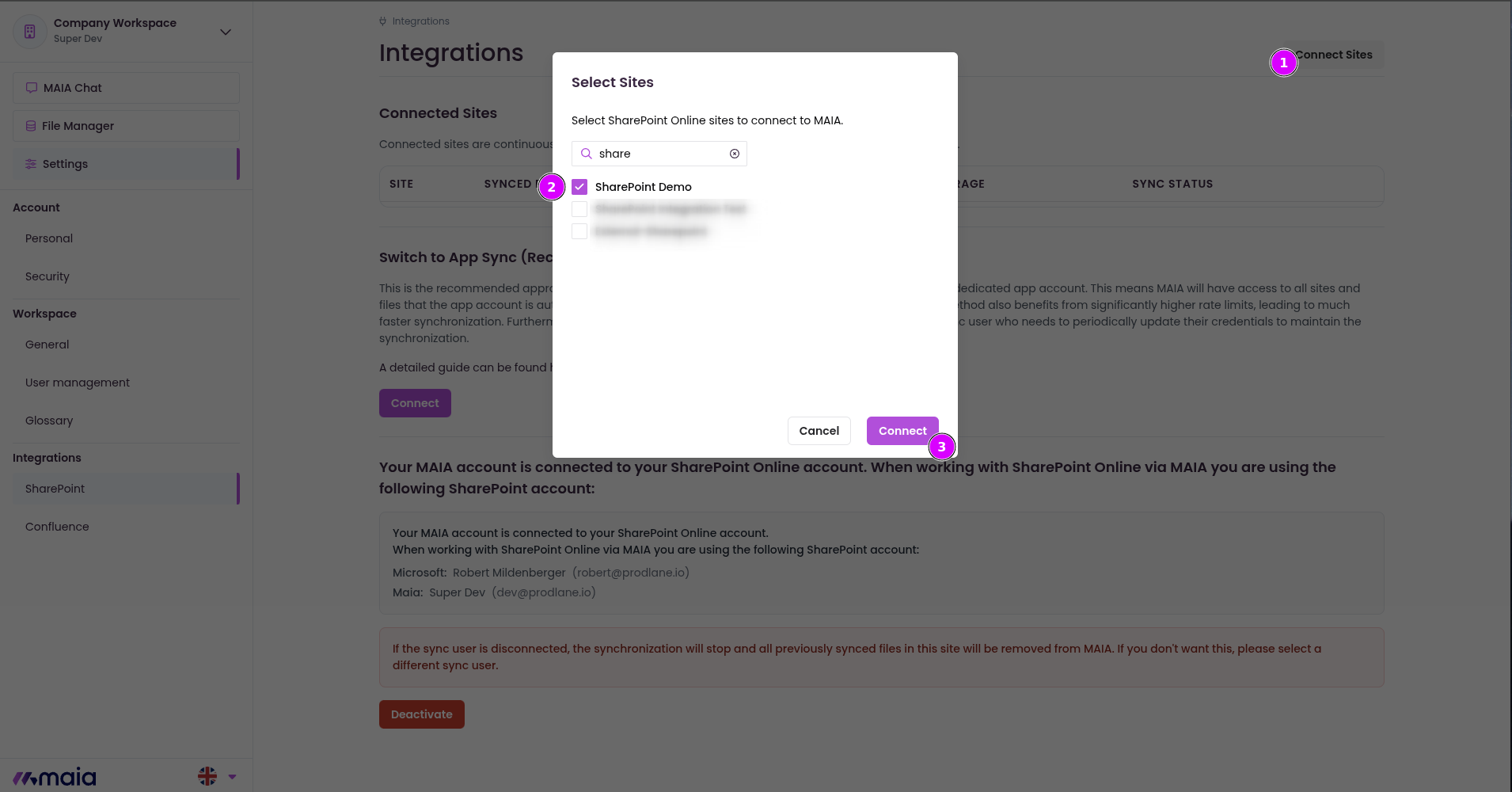
Click Connect Sites
Select one or more SharePoint sites you want to sync
Click Connect
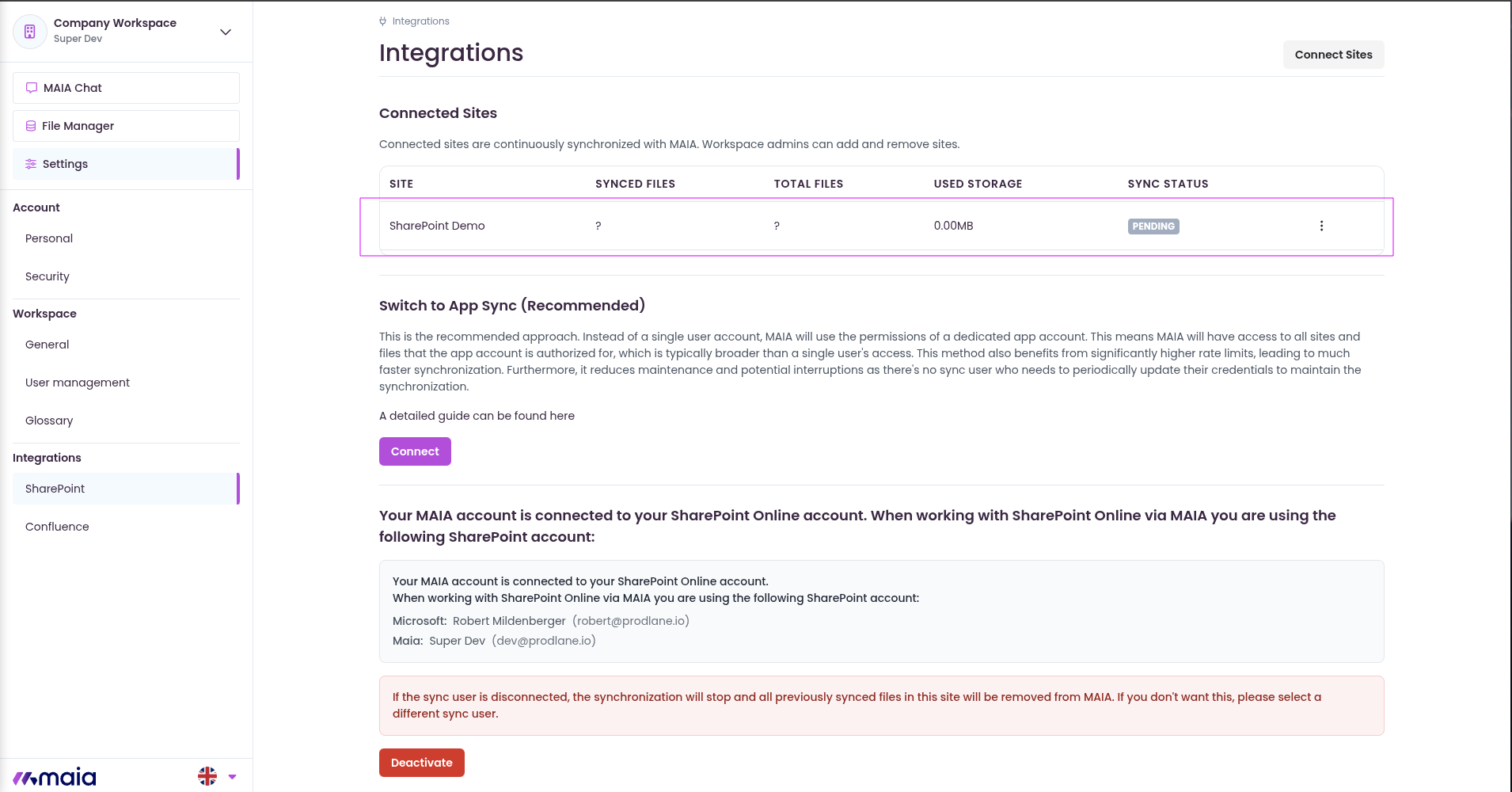
You will see selected sites appear under Connected Sites, including sync status, file count, and storage usage
Changing Tenant or Sync Method

You can switch to App-Based Sync at any time without deactivation.
To switch from App-Based Sync to User-Based Sync, or to change the Microsoft tenant, you must deactivate the SharePoint integration first.
Steps:
Click Deactivate under the SharePoint integration settings.
This action will disconnect all connected Microsoft accounts from the workspace.
After deactivation, follow the setup process again starting from Step 1.
The first Microsoft account connected after deactivation will define the new Microsoft tenant for the workspace.
Note: Changing the sync method or tenant affects access and sync behavior for all users in the workspace.
Final Notes
MAIA Admins can only connect SharePoint sites they have access to via their Microsoft account
Only connected sites are synced — no implicit data access
What isn’t visible to the sync method (user or app) cannot be synced or seen in MAIA
The enterprise sync method is recommended for:
Workspaces with many users
SharePoint libraries with over 10,000 files